
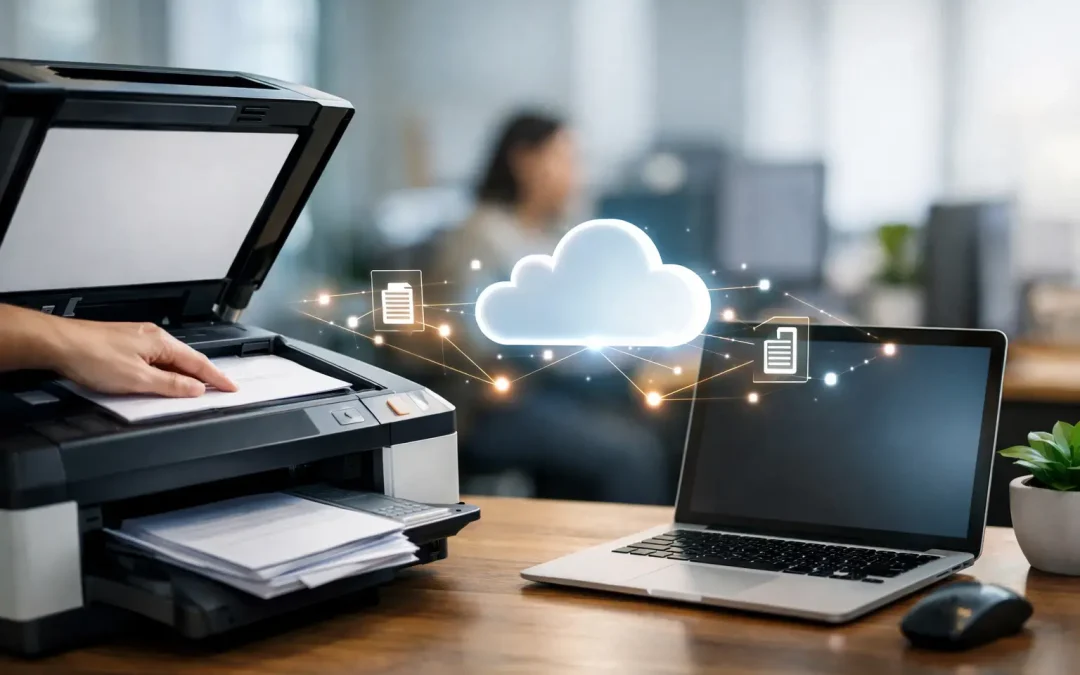
A signed delivery order sits on a receptionist’s desk. An invoice waits in a tray for approval. A contract needs to reach a project manager who is offsite. None of these documents are difficult to process, yet together they create the small delays that slow down a growing business. Scan to cloud changes that equation by turning the office multifunction device into a direct entry point for digital workflows.
For small and mid-sized businesses, this is not simply a question of replacing paper with PDFs. It is about getting information to the right person, in the right system, with less handling in between. When configured around real operating requirements, scan to cloud can reduce administrative workload, support faster decisions, and give teams a more dependable way to manage documents across locations.
What scan to cloud means for your business
Scan to cloud allows employees to scan paper documents from a multifunction printer and send them directly to an approved cloud destination. Depending on the setup, that destination may be a shared document library, a project folder, a finance repository, an email address, or a custom business application.
The value is not in sending a file somewhere online. The value comes from removing avoidable steps. Without a defined process, an employee may scan a document to their desktop, rename it, attach it to an email, forward it for review, and save a second copy in a shared folder. That process takes time, creates duplicate versions, and makes accountability unclear.
A well-designed workflow lets the employee select a purpose on the device screen, such as “Supplier Invoice,” “Signed Contract,” or “Site Report.” The file is then named, routed, and stored according to the business rule behind that selection. A finance document can reach the accounts team. A service report can enter a customer record. A contract can be sent to the relevant manager for action.
Why faster document routing affects growth
Operational bottlenecks are rarely caused by one large failure. More often, they are caused by hundreds of small interruptions: searching for a file, asking who has the latest version, chasing an approval, or rekeying details from a printed form.
Scan to cloud gives businesses a practical way to reduce these interruptions at the point where paper enters the process. Instead of asking staff to remember where every document belongs, the device and workflow guide them toward a consistent outcome. This is especially useful for organizations handling high volumes of invoices, purchase orders, job sheets, application forms, HR documents, or signed customer paperwork.
The effect reaches beyond the admin team. Managers can review documents sooner. Finance teams can process invoices with fewer handoffs. Sales and service teams can access customer records without returning to the office. Business owners gain better visibility because documents are stored in an agreed location rather than scattered across personal inboxes and local drives.
There is also a customer-service benefit. When a client calls about a signed quotation, delivery confirmation, or service report, the team should be able to locate it quickly. Prompt access to records strengthens confidence and helps the business respond with greater professionalism.
The real return is reduced rework
Paper is not always the problem. Unstructured handling is. Scanning every document into one large folder may remove filing cabinets, but it does not solve retrieval, access control, or approval delays.
The stronger approach is to map what happens after a document is received. Who needs it? What information must be captured? Does it require approval? How long must it be retained? Can it be linked to a customer, supplier, job, or department? These questions define whether a basic scanning function is enough or whether the business needs a more connected workflow.
For example, an accounts department may benefit from invoice scanning that routes files to an invoice folder and notifies the assigned approver. A construction or facilities business may need field reports to reach a project workspace immediately. A professional services firm may prioritize document classification and restricted access for confidential client records.
How to build a scan to cloud workflow that works
The best implementation starts with the documents that cause the most friction today. Do not try to digitize every process at once. Begin with a workflow that has clear volume, repetition, and measurable cost in staff time.
First, identify the document journey from receipt to completion. This includes the person who scans it, the destination where it should be stored, the people who need access, and the action that follows. A simple process map often exposes unnecessary email forwarding and manual filing.
Next, define a consistent naming and folder structure. This sounds basic, but it is essential. A file called “scan001.pdf” has little operational value. A file named by document type, supplier or customer, date, and reference number is far easier to search and audit. Where possible, automation can apply this structure so employees do not have to type it manually.
Then, configure access by role. Not every employee needs access to payroll records, contracts, or financial documents. Cloud storage should support the way the business is organized, with clear permissions for departments, managers, and external parties where necessary. Convenience matters, but it should not come at the cost of sensitive information.
Finally, test the process with the employees who will use it every day. A workflow that looks good in a planning session can fail if the device screen is confusing, the options are poorly labeled, or exceptions are not considered. Ask users to process real documents, then refine the steps before wider rollout.
Choosing the right cloud destination
There is no single best destination for scanned documents. The right choice depends on how the organization already works and what it needs to achieve.
A shared cloud document platform is often suitable when teams need controlled storage, collaboration, and searchability. It works well for general administration, project documents, and internal records. If the business already uses a platform for team communication and file management, connecting the multifunction device to that environment can encourage adoption because staff are not asked to learn another place to look.
A business application may be the better destination when scanned documents need to sit alongside operational data. For instance, a custom system could attach signed forms to a customer profile, job record, or approval request. This reduces the need for employees to switch between multiple systems and can create a clearer record of each transaction.
Email-based scanning still has a place for ad hoc use, especially when a document must reach an external recipient quickly. However, it should not be the default for recurring internal processes. Email inboxes are difficult to govern, easy to overlook, and rarely provide the structure needed for long-term document management.
Security and compliance need practical attention
Cloud workflows can improve control over paper documents, but only when security is designed into the process. Sending a file to an unmanaged personal account or leaving scanned documents in a public shared folder creates new risks rather than solving old ones.
Businesses should consider device user authentication, encrypted transmission, controlled cloud permissions, retention policies, and audit trails. The required level of control depends on the type of information involved. A marketing brochure does not require the same treatment as an employee medical record, bank detail, or confidential commercial agreement.
It is also worth planning for exceptions. What happens if a scan is unreadable? Who corrects an incorrectly routed file? How are duplicate documents handled? Clear ownership prevents minor errors from becoming recurring issues.
For Singapore-based SMEs, this is an opportunity to connect office technology with a broader digital transformation plan. CSS Office Solutions can help align Fujifilm multifunction devices, cloud document processes, and tailored software around the way your teams actually operate, rather than forcing the business into a generic template.
When scan to cloud is not enough
Scan to cloud is highly effective for getting documents into the right digital environment, but it does not automatically extract every piece of information or make approval decisions. Businesses that process large volumes of similar documents may also need optical character recognition, automated data capture, workflow approvals, or integration with accounting and CRM systems.
That does not mean every business should invest in advanced automation immediately. If document volumes are low or the process is simple, a carefully configured scan destination and naming structure may deliver strong results with minimal complexity. The right investment is the one that removes the most meaningful friction without creating a system that staff avoid using.
As document volume grows, the workflow can evolve. Start with reliable scanning and storage. Add approvals where delays are common. Connect the process to business systems when staff are repeatedly copying the same details between tools. This phased approach keeps the change manageable while building a foundation for greater efficiency.
The next document that enters your office can remain a piece of paper waiting for someone to act, or it can become the first step in a faster, more accountable process. The difference lies in designing the route with intention.