
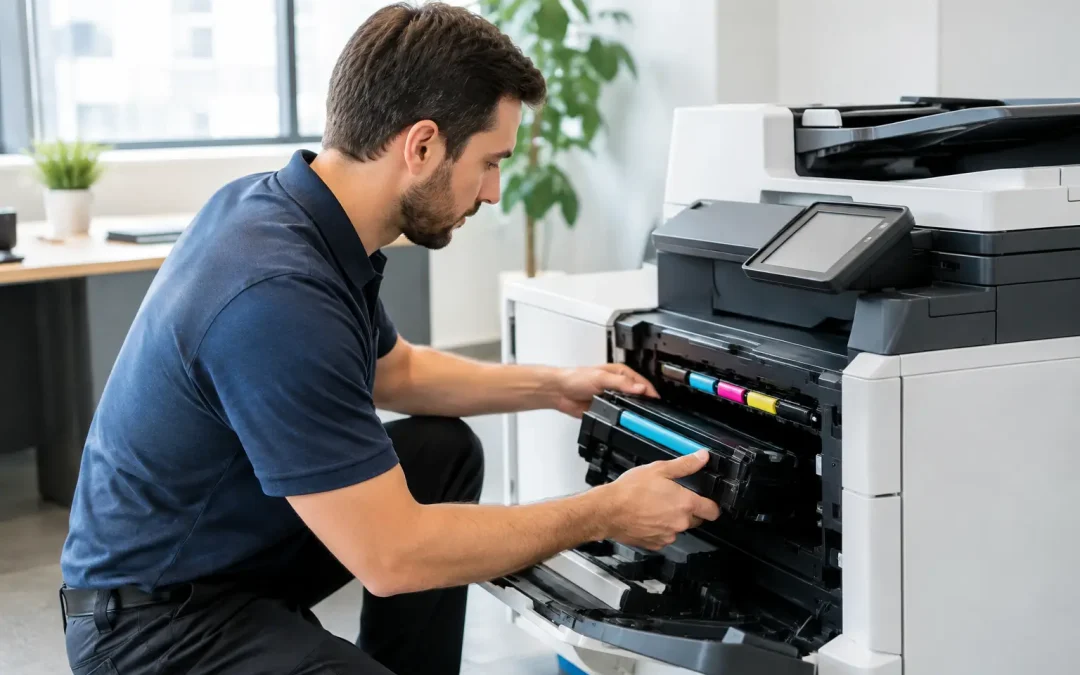
A copier failure rarely affects only the person standing at the device. It can hold up invoices, customer proposals, delivery documents, HR paperwork, and meetings that depend on printed material. Learning how to reduce copier downtime is therefore not simply an office maintenance task. It is a practical way to protect productivity, control operating costs, and keep everyday work moving.
For growing businesses, the answer is not to over-service every machine or replace equipment at the first paper jam. The goal is to build a reliable system around the right device, the right habits, responsive support, and workflows that do not stop when one piece of equipment needs attention.
Start With the Real Causes of Copier Downtime
Most copier downtime falls into one of two categories: preventable device issues and avoidable workflow delays. Paper jams, poor print quality, toner errors, and scan failures are visible problems. Less visible issues, such as an overloaded device, incorrect paper settings, unstable network access, or unclear responsibility for supplies, can waste just as much time.
Before changing vendors or purchasing a new multifunction device, track what is actually happening. For four to six weeks, record each incident, how long the device was unavailable, the error shown, and whether staff could resolve it without calling for support. This creates a useful baseline. A machine that experiences small, self-resolved jams twice a month needs a different response from one that regularly loses network connectivity or requires technician visits.
Look for patterns by time, department, document type, and user behavior. For example, frequent jams may occur because staff load mixed paper sizes in the same tray. Repeated scan-to-email failures may point to email security settings rather than a fault in the copier. Accurate diagnosis prevents businesses from spending on the wrong solution.
Choose a Copier That Matches Actual Demand
An under-specified copier is one of the most common sources of recurring interruptions. A small desktop device may appear cost-effective, but it can become a bottleneck when several teams depend on it for invoices, contracts, and high-volume scanning. Repeated overheating, slow processing, and frequent consumable changes create downtime that is far more expensive than the monthly cost of a suitable multifunction printer.
Assess print volume honestly. Review average monthly pages, peak-period demand, color versus black-and-white requirements, paper sizes, finishing needs, and scan volumes. A business that prints modestly most months but has intense month-end processing may need a device built for higher peaks, not just average usage.
Device placement matters too. One central copier may be sensible for a compact office, but it can create delays in a larger workspace or where separate teams process time-sensitive documents. A secondary device may be worthwhile for departments such as finance, customer service, or operations. The trade-off is higher equipment and supply management, so the decision should be based on the cost of interruption rather than convenience alone.
Fujifilm multifunction devices can support printing, copying, scanning, and document routing from a single managed platform. When selected around real business requirements, they help reduce the number of disconnected devices that administrators must troubleshoot and maintain.
Build a Preventive Maintenance Routine
Waiting for a device to fail is the most expensive maintenance strategy. Preventive maintenance helps identify worn rollers, fuser issues, toner problems, and calibration needs before they affect a busy workday.
A service plan should include scheduled inspections based on device usage, not just a fixed calendar date. A high-volume copier may need more frequent attention than a lightly used machine, even if both are the same model. During service visits, technicians should inspect paper paths, clean internal components, check firmware, test print quality, and confirm that scan functions are operating correctly.
Your office team also has a role. Assign one employee or office administrator as the first point of contact for basic checks. They do not need to be a technician. They should know how to remove paper safely, load trays correctly, replace approved toner, recognize common alerts, and document recurring errors.
Avoid using unsuitable paper or non-approved consumables to reduce short-term costs. Low-quality paper can leave residue, curl under heat, and increase paper jams. Third-party toner may produce inconsistent output or trigger compatibility issues. Savings at purchase can quickly disappear in lost staff time, service callouts, and reprints.
Keep Supplies Available Without Overstocking
A copier is effectively down when it runs out of toner, staples, or the paper needed for an urgent job. These supply interruptions are among the easiest problems to prevent, yet they remain common in busy offices.
Set minimum stock levels for the consumables your device uses most often. The right level depends on delivery lead times, print volume, storage space, and whether the copier uses multiple toner colors. For most offices, keeping a backup of essential toner cartridges and frequently used paper sizes is more practical than holding excessive stock that may be misplaced or damaged.
Managed supply monitoring can make this process more reliable. When device usage and toner levels are monitored, replacement supplies can be arranged before a cartridge is empty. This removes the guesswork from an administrator’s workload and helps prevent the last-minute rush to source supplies.
Paper management deserves the same discipline. Store paper in a dry, clean area and keep opened reams protected from humidity. Moisture and damaged paper edges are common causes of feed problems, particularly in offices with heavy air conditioning or inconsistent storage conditions.
Standardize Everyday User Habits
Many copier incidents start with a small user error: selecting the wrong tray, forcing a jammed sheet out of the machine, loading labels incorrectly, or sending an unusually large print job without checking settings. These mistakes are understandable, especially when teams are under pressure. The solution is not restrictive rules. It is simple, visible guidance.
Create a one-page quick-reference guide near the device. It should explain which trays hold which paper, how to load paper, what to do when a jam occurs, who to contact for support, and when staff should stop troubleshooting. Keep the instructions specific to the model in your office.
For more complex jobs, such as booklet printing, label printing, confidential release printing, or scanning to shared folders, provide short training for the teams that use those functions. A few minutes of instruction can prevent hours of trial and error. It also helps employees use the features already included in a multifunction device, rather than creating manual workarounds.
Strengthen Network and Scan Reliability
Modern copiers are networked business devices, not standalone machines. If printing queues stall, user authentication fails, or scan destinations stop working, the issue may sit within your network, email platform, or permissions structure.
Work with your IT provider to give the copier a stable network configuration and appropriate security settings. Assigning a reserved IP address, maintaining current firmware, and documenting administrator credentials can prevent avoidable disruption. When office systems change, such as a new email domain, password policy, file server, or cloud storage platform, include copier scan settings in the transition checklist.
Scan workflows should also be designed around how teams work. A generic shared inbox may be easy to set up, but it can create lost documents and security concerns. Departments may benefit from defined scan destinations, naming conventions, access controls, and automated routing into document management or business software. This reduces reliance on printing, scanning, and manually forwarding documents between people.
Create a Clear Support and Escalation Path
Fast support is valuable only when employees know how to access it. Establish a clear process for reporting copier issues. Staff should provide the device location, error code, a description of the issue, and whether urgent work is affected. Photos of error messages or print defects can help a support team diagnose issues before arriving onsite.
Agree on what your service arrangement covers, including response expectations, replacement parts, consumables, remote troubleshooting, and loan equipment where applicable. Businesses with critical printing needs should discuss what happens if a major repair takes longer than expected. A temporary device, alternative print location, or predefined fallback process can protect operations.
At CSS Office Solutions, the focus is not simply on supplying a device. It is on aligning office technology with the way your teams print, scan, approve, and manage documents. That consultative approach is especially useful when recurring copier issues are tied to broader manual processes rather than the machine itself.
Reduce Dependence on Printing Where It Adds No Value
The most effective way to reduce copier downtime is sometimes to reduce unnecessary demand on the copier. Many businesses still print documents for review, approval, filing, or handover because the digital alternative has not been properly structured.
Consider which high-frequency documents can move to digital workflows. Purchase requests, leave forms, job sheets, onboarding documents, approval records, and customer acknowledgments may be managed through customized forms, workflow software, or secure shared systems. This does not eliminate the need for a reliable copier. It ensures that the copier is used for documents that genuinely need a physical format.
The trade-off is implementation effort. Digital workflows require clear requirements, user adoption, and sensible controls. But when designed around the business, they reduce repetitive printing, minimize document handling errors, and give managers better visibility into process bottlenecks.
A dependable copier is not the result of luck. It comes from matching equipment to demand, preventing predictable failures, training users, and modernizing the paper-heavy processes that drain time every day. Treat copier reliability as part of your wider operational strategy, and your office gains more than fewer service calls: it gains the capacity to move faster when business demands it.