
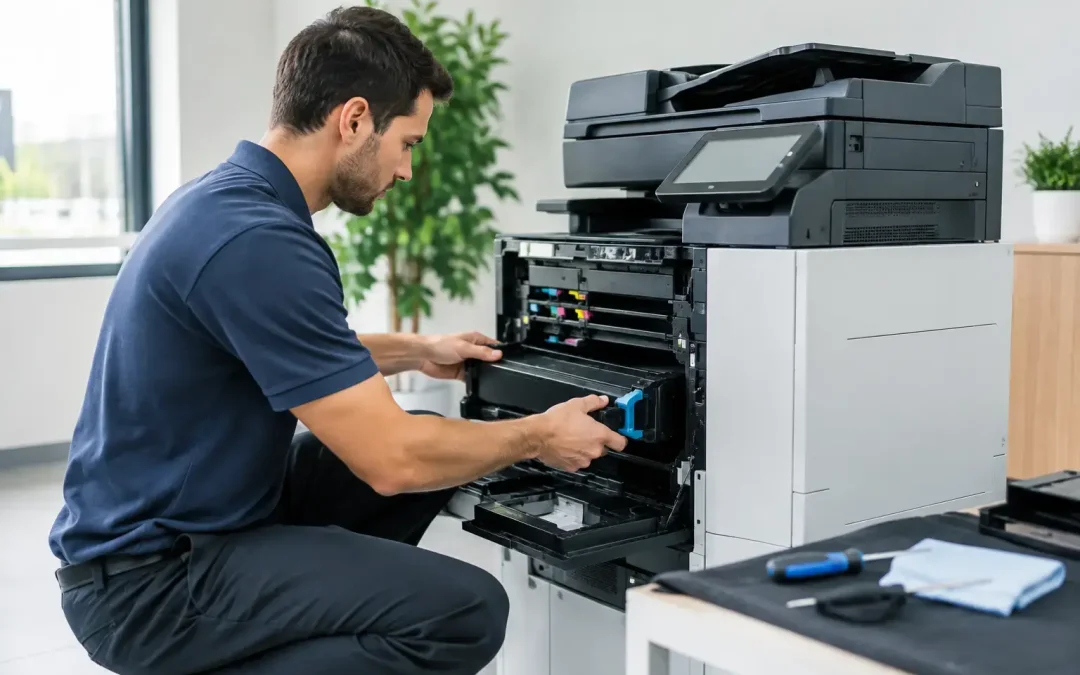
A copier failure rarely happens at a convenient time. It tends to surface when invoices need to go out, contracts need signing, or a client presentation is minutes from printing. This Fujifilm copier maintenance guide helps office teams prevent avoidable interruptions, preserve print quality, and get more value from an essential business device.
For small and mid-sized businesses, copier maintenance is not simply an IT task. It is an operational discipline. A well-maintained Fujifilm multifunction device supports faster document workflows, controls reprint waste, and lets staff focus on work that moves the business forward.
Why Fujifilm Copier Maintenance Affects Business Performance
A multifunction copier combines several high-use functions in one machine: printing, copying, scanning, and often secure document distribution. When one component is neglected, the impact can spread quickly. Streaked pages create rework, paper jams delay employees, and poor scan quality can slow approval processes or create incomplete digital records.
Preventive care costs less than repeated emergency fixes. It also makes usage patterns easier to manage. If a device is regularly running out of toner, jamming at peak hours, or producing faded output, the issue may be maintenance-related, but it may also indicate that the current configuration or device capacity no longer matches the office’s workload.
The goal is not to have employees dismantle a copier. The goal is to establish simple daily habits, clear accountability, and timely access to qualified technical support.
Your Fujifilm Copier Maintenance Guide: A Practical Schedule
The most reliable approach is to assign basic care by frequency. The right schedule depends on print volume, paper type, and the specific Fujifilm model, but a consistent routine will prevent many common problems.
Daily checks that take minutes
At the start or end of the workday, check the display panel for alerts. Do not ignore low-toner messages, paper tray warnings, or maintenance notifications until the device stops operating. Ordering supplies early gives the office time to avoid disruption.
Keep the paper trays correctly loaded. Use clean, dry paper of the approved weight and size, and make sure the tray guides sit snugly against the stack without bending it. Paper stored in humid areas can absorb moisture and become a major cause of jams, curled pages, and uneven printing.
The scanner glass also deserves attention. Fingerprints, correction fluid, dust, and small marks can appear as lines or spots on every scanned page. Wipe the glass gently with a soft, lint-free cloth. Apply a small amount of approved glass cleaner to the cloth, never directly onto the machine.
Weekly cleaning for better output
Once a week, clean the exterior, control panel, and paper-feed areas that users can safely access. Turn the device off if required by the operating instructions, then use a dry lint-free cloth to remove dust around trays and vents. Do not use abrasive cleaners, aerosol sprays, or excessive moisture.
Check the automatic document feeder for scraps of paper, adhesive labels, staples, or other debris. A single torn corner can cause repeated feeder jams and scanned documents with missing sections. If your team scans high volumes of invoices or forms, this check should happen more often than once a week.
Use the copier’s test print or status page to review output quality. Look for faint text, lines, toner scatter, color inconsistency, or repeated marks. Identifying a gradual quality decline early gives a technician a clearer starting point and may prevent a larger failure.
Monthly operational review
A monthly review should cover more than cleaning. Review print volume, frequent error codes, supply consumption, and user feedback. This gives your office administrator or operations manager a useful record when speaking with a service provider.
Confirm that firmware updates, device settings, and security controls are being managed through the appropriate support process. Networked multifunction devices handle business documents and user credentials, so maintenance should include access management as well as mechanical care. Remove former employees from address books or authentication systems and review scan-to-email destinations where relevant.
If the device has a meter reading requirement under your service plan, capture it on schedule. Accurate readings support timely toner supply, predictable billing, and better visibility into your actual printing costs.
Use the Right Supplies and Paper
Saving a small amount on incompatible toner or low-grade paper can create a larger cost through jams, poor print quality, damaged components, and unnecessary service visits. Use genuine or approved consumables specified for your Fujifilm device. Toner cartridges, drums, and maintenance kits are designed to work with specific machine models and duty cycles.
Paper selection matters just as much. General office paper may be suitable for everyday correspondence, while heavier stocks, envelopes, labels, or glossy materials often require a dedicated tray and precise settings. Before running a special job, select the correct media type on both the copier and print driver. Guessing these settings can lead to toner not fusing properly, wrinkling, or paper becoming stuck inside the device.
Store paper flat in its sealed packaging until needed. Avoid placing it directly on the floor, near windows, or beside pantry and air-conditioning areas where temperature and humidity fluctuate.
Respond to Paper Jams Without Making Them Worse
When a jam occurs, resist the urge to pull the paper out quickly. The display panel will usually identify the area to inspect and may provide model-specific illustrations. Follow those instructions carefully, open only the indicated covers, and remove paper in the direction shown.
If the sheet tears, do not leave fragments inside the copier. Small pieces can trigger repeated jams or damage moving parts. Avoid touching the drum, fuser area, rollers, or internal belts unless the user manual specifically directs you to do so. Some components may be hot after printing, while others are sensitive to oils from hands.
Repeated jams in the same location are not normal. Record the error message, paper type, tray used, and number of pages in the job. This information helps a trained technician determine whether the cause is worn feed rollers, unsuitable media, tray alignment, or an internal component that needs replacement.
Protect Scanning and Document Security
For many offices, scanning is more business-critical than printing. Contracts, delivery orders, HR records, and finance documents often enter a digital workflow through the multifunction device. Poor scan settings or unmanaged address books can create operational and security risks.
Set standard scan profiles for common tasks, such as searchable PDF for internal records, higher-resolution PDF for detailed documents, and appropriate color settings for marketing materials. Oversized files consume storage and can clog email systems, while low-resolution scans may be unreadable when staff need them later.
Protect access with user authentication where appropriate, particularly for shared devices handling confidential records. Secure print release can also reduce abandoned pages in output trays and prevent sensitive documents from being viewed by unauthorized staff. These controls support efficiency because employees print only what they collect.
Know When to Call a Service Professional
Basic office care is valuable, but certain issues should be escalated promptly. Call for support when you see recurring error codes, unusual noises, burning odors, persistent streaks after normal cleaning, repeated jams, toner leakage, or network scanning failures that disrupt multiple users.
Trying to repair internal parts without training may void service coverage, damage the device, or create a safety concern. A qualified Fujifilm service partner can inspect wear components, perform preventive servicing, update settings, and advise whether a repair remains cost-effective.
This is also the right moment to assess the wider workflow. If staff routinely queue for the device, manually rename scanned files, or struggle to locate documents after scanning, the challenge may extend beyond copier maintenance. Device configuration, document management processes, and tailored software can amplify the return from the hardware already in place.
Build Ownership Into Your Office Routine
Assign a primary device owner and a backup rather than leaving maintenance to everyone and no one. They do not need to be technical specialists. Their role is to monitor supplies, keep the immediate area tidy, log recurring faults, and contact support with accurate information.
A simple maintenance log can include the date, issue, error code, paper type, action taken, and whether service was required. Over time, this record reveals patterns that casual observation misses. It may show that a particular tray causes most jams, that specialty media needs better handling, or that the copier is nearing its practical workload limit.
CSS Office Solutions helps businesses align Fujifilm office devices with the workflows behind them, so maintenance, print control, scanning, and digital processes work toward the same productivity goals. Treat your copier as part of your operating system, not a stand-alone machine, and routine care will keep it ready when the next critical document cannot wait.