
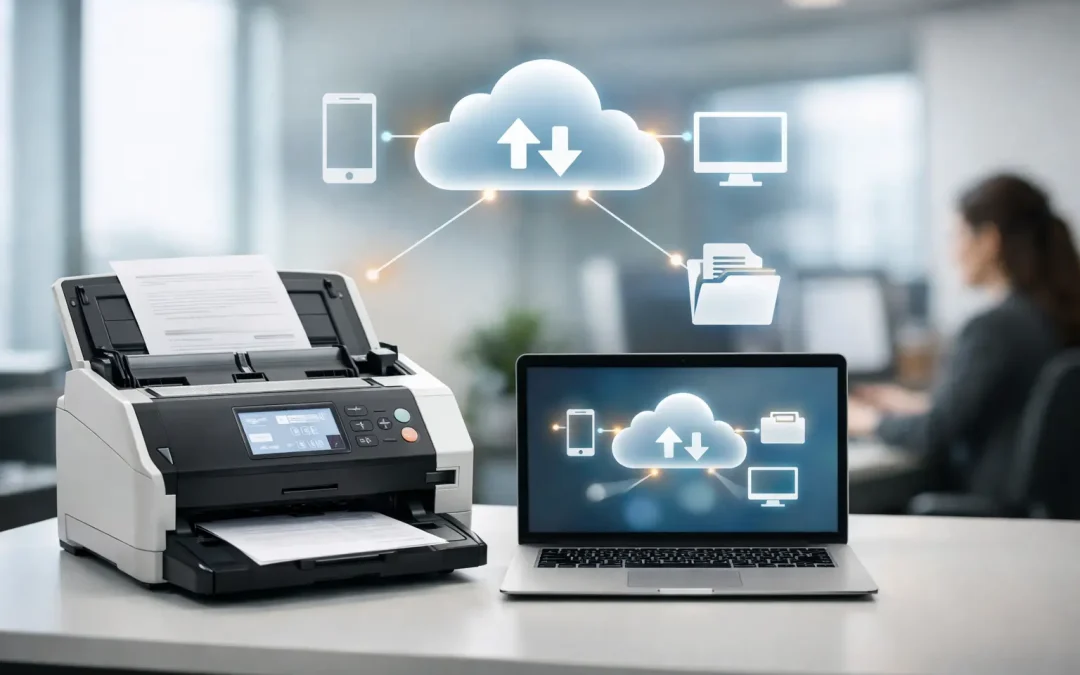
A signed delivery order sitting in an in-tray is not just paperwork. It can delay invoicing, leave an operations team chasing approvals, and make a customer query harder to answer. Fujifilm scan to cloud turns that document into an accessible digital file at the point of capture, helping businesses move work forward while the details are still current.
For small and mid-sized businesses, the value is not simply replacing a filing cabinet with online storage. The real opportunity is to design a dependable route from a multifunction device to the place where a team actually works: a shared document repository, a departmental folder, a business system, or a structured approval process. When that route is clear, paper stops being a bottleneck and becomes useful business information.
What Fujifilm Scan to Cloud Does for Operations
Fujifilm multifunction devices can be configured to scan documents and send them to approved cloud destinations or network locations, subject to the device model, chosen platform, and organization’s configuration. A user can select a destination at the device, apply a file name or document type, and create a searchable digital copy without returning to a desk to scan, save, attach, and forward the file manually.
That seemingly small change has a direct operational effect. Accounts teams can capture supplier invoices quickly. Site staff can submit delivery documentation without waiting for a weekly collection. HR can organize employee forms in controlled locations. Sales teams can preserve signed quotations and customer records where authorized colleagues can retrieve them.
The benefit grows when scanning rules match the way the business operates. A generic folder called “Scans” usually creates a new digital mess. A considered setup, on the other hand, makes the correct action easy: select “Accounts Payable,” scan in a consistent format, and send the file to the designated intake location. The team spends less time deciding where files belong and more time completing the work that depends on them.
Why Cloud Scanning Needs a Workflow, Not Just a Device
Buying an office device with cloud capability does not automatically modernize a process. The device is the capture point. The business result comes from what happens before and after the scan.
Start by identifying documents that repeatedly slow down an operation. These are often invoices, purchase orders, delivery orders, service reports, contracts, claims forms, and employee records. Ask who receives each document, who needs to approve it, how long it should be retained, and what information colleagues need to find it later. Those answers determine the destination, naming convention, permissions, and any next-step automation.
For example, a construction supplier may scan delivery orders at the warehouse and route them into folders organized by customer and date. The finance team can verify supporting documents before billing, while customer service can respond to disputes with the same record. A professional services firm may route signed engagement documents to a restricted client folder, where project staff can confirm scope and approvals without handling physical files.
This is where a tailored approach matters. A cloud destination that works for a five-person office may become confusing for a larger team with multiple sites, departments, or approval levels. The aim is not to impose enterprise complexity on every business. It is to build enough structure to support accountability today and scale without rework tomorrow.
Capture quality affects downstream work
A poorly scanned document creates friction even when it reaches the right cloud folder. Pages may be cut off, text may be unreadable, or an upside-down file may be difficult to review on a phone. Establish practical scan defaults for common document types, including resolution, color mode, single- or double-sided capture, and PDF format.
Optical character recognition, where available and appropriate, can add another layer of value by making text within scanned documents searchable. This helps when a team needs to locate an invoice number, project reference, or customer name across a large archive. However, OCR accuracy depends on print quality, handwriting, page condition, and the document layout. It should support a sensible filing structure, not replace one.
Designing a Fujifilm Scan to Cloud Setup
An effective deployment begins with a small number of high-volume, high-friction use cases. Trying to digitize every historical process at once can overwhelm users and make it difficult to measure results. Choose one workflow where delayed paperwork has a visible cost, then create a repeatable template for other departments.
First, define approved destinations. These should reflect where each team already needs to access records, while maintaining proper access control. Finance documents, personnel files, and commercially sensitive contracts should not be routed to broad shared locations simply for convenience. Configure destinations so users see relevant choices rather than a long, error-prone list.
Second, make naming and indexing practical. A file name such as “scan_0001.pdf” has little operational value. A format based on document type, supplier or customer, reference number, and date is far more useful. The exact convention depends on the business, but it must be simple enough for busy staff to use consistently. Where a workflow needs more detailed metadata, a connected software solution may be more appropriate than expecting staff to enter multiple fields at the device.
Third, decide what should happen after capture. In some cases, saving a document to the correct folder is enough. In others, the scan should notify a reviewer, trigger an approval task, populate a business record, or be checked against information in an accounting or operations platform. These integrations are where a document workflow can amplify productivity, but they require clear requirements and testing.
Finally, train for the real working environment. A two-minute demonstration can be sufficient for a simple scan route, provided the on-screen options are intuitive and the team knows what to do when a scan fails or a document is misfiled. For workflows involving confidential records or approvals, provide a more formal process guide and assign an owner who can maintain destinations as roles and folders change.
Security, Governance, and the Right Trade-Offs
Cloud scanning improves accessibility, but it also changes how a business must manage information. The question is not whether paper is safer than digital by default. Paper can be copied, misplaced, or viewed by the wrong person as easily as a digital file can be shared too broadly. The priority is to apply controls that match the sensitivity of the documents.
User authentication at the multifunction device can help associate activity with individuals and reduce the risk of unauthorized use. Access rights at the destination should follow job responsibilities, with restricted locations for HR, financial, legal, and customer-sensitive information. Retention policies also matter. Keeping every scan forever can increase clutter, storage costs, and compliance exposure.
There are trade-offs. Sending documents directly to a broadly accessible team folder is fast, but it may offer limited review control. Adding mandatory metadata and multi-step approvals improves governance, but can slow a simple workflow. The right balance depends on document risk and business impact. A routine internal form may need only basic routing. A signed contract or employee record deserves stricter handling.
Reliable connectivity is another consideration. Cloud-based workflows depend on network availability and correctly managed credentials. Businesses should plan for what staff do during an internet disruption, how destination access is maintained when employees leave, and who reviews errors. These are operational decisions, not technical afterthoughts.
Measuring the Business Return
The strongest case for scan-to-cloud is measured in time recovered, errors avoided, and delays removed. Before implementation, record a baseline: how long it takes to find a document, how many invoices arrive late for processing, how often staff re-scan or email files, and how much space or administrative effort paper records consume.
After rollout, look for practical indicators. An accounts team may process supplier documentation earlier. Managers may approve site reports without waiting for physical delivery. Customer-facing employees may resolve record requests during the first interaction rather than promising a callback. These outcomes improve efficiency, but they also improve the reliability customers and suppliers experience.
CSS Office Solutions works with businesses that need more than a device installed on a counter. The objective is to connect Fujifilm office technology with the folders, software, permissions, and processes that move each client’s business forward. That can begin with a focused document workflow and expand into custom software or wider operational modernization when the business is ready.
The most useful next step is to take one recurring paper delay from your office and map its journey from arrival to completion. If the right person could receive a secure, searchable file within minutes rather than days, that is a workflow worth redesigning.